### Blog Post:
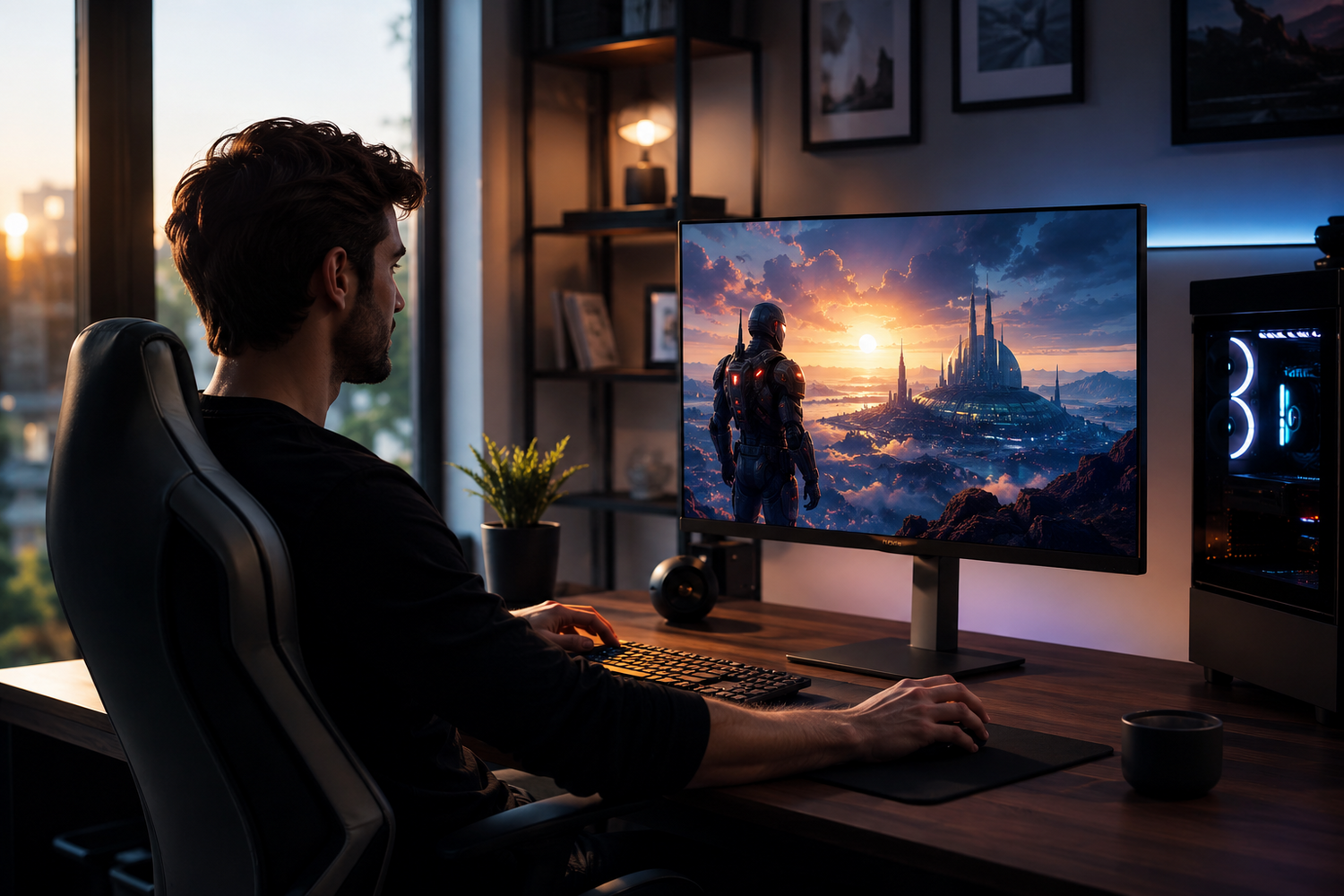
aoc q27g3xmn puts rare mini-LED and genuine VESA DisplayHDR 1000 into a budget gaming monitor—but VA motion and VRR issues make it a tough pick for some. If you’re weighing incredible HDR and deep blacks against reported black smearing and flicker, this guide gives you the clear, realistic answer.
Key Takeaways
- Mini-LED, Real HDR for Less: The AOC Q27G3XMN delivers 336-zone mini-LED local dimming and up to 1300 cd/m²—features rare at this price, offering real HDR highlight pop and VA panel-level contrast.
- Motion and VRR Flaws: Fast-paced FPS gamers may notice visible black smearing and potential VRR flicker, especially if frame rates fluctuate below 180Hz.
- Best For: Immersive single-player gamers and HDR fans on a mid-range GPU (DisplayPort 1.4 capable) who value deep blacks over absolute crisp motion.
- What Makes the Q27G3XMN Special?
- Hands-On Setup: Step-by-Step Guide
- Advanced Analysis & Common Pitfalls
- Conclusion & Recommendation
- FAQ
What Makes the Q27G3XMN Special?
The AOC Q27G3XMN is not your average budget gaming monitor. What sets this model apart, especially in 2024–2026, is its rare pairing of true mini-LED full-array local dimming (336 zones) with a VA panel and a full VESA DisplayHDR 1000 rating. This means it can hit dazzling peak brightness (real-world measurements up to 1300 cd/m²) and create deep, inky blacks right next to bright HDR highlights—something unheard of under $500 just a couple years ago.
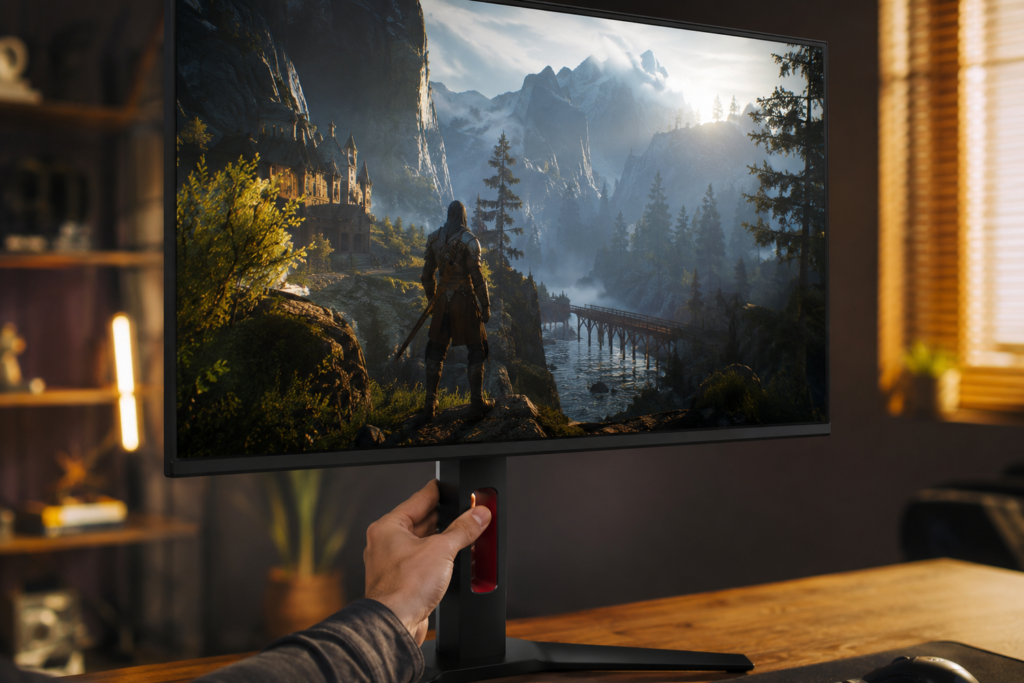
For gamers and creators who crave impactful HDR, this tech combo delivers real contrast and makes new-gen games, videos, and creative tools look “popped out.” But these HDR and contrast advantages come packed in a VA-based panel that, as users and pro reviewers note, brings common VA motion trade-offs: black smearing and occasional flickering during variable frame-rate gaming. Whether these are dealbreakers (or worth the trade for amazing darks and highlights) is what the following sections will break down in actionable detail.
Hands-On Setup: Step-by-Step Guide
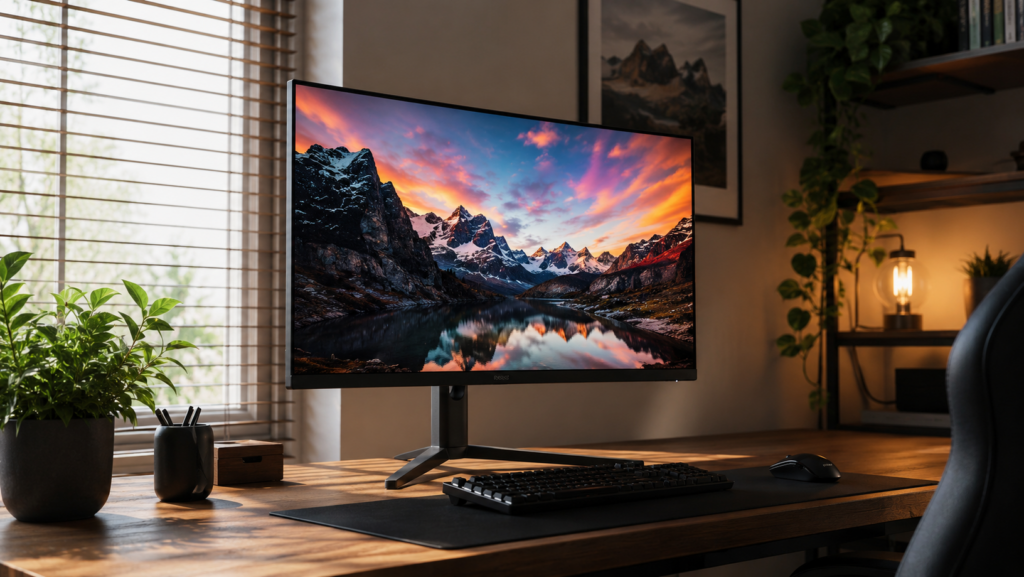
Get the most from your AOC Q27G3XMN out of the box with this no-fuss, optimized setup sequence. Avoid common mistakes and unlock the monitor’s true potential in under 10 minutes.
- Physical Setup:
- Unbox and attach the height-adjustable stand (or VESA mount if desired).
- Position the monitor in moderate lighting for best HDR results—the panel’s strong peak brightness can handle daytime glare.
- Cable & Port Selection:
- Connect your GPU to the monitor using DisplayPort 1.4. Only this port supports the overclocked 180Hz and full VRR/HDR feature set.
- Console gamers: HDMI 2.0 supports up to 144Hz at 1440p but won’t enable the full 180Hz or all HDR/VRR features. There’s no HDMI 2.1 here—see our HDMI 2.1 monitor guide for next-gen consoles.
- PC Display Settings:
- In Windows, right-click Desktop → Display Settings → Advanced Display to select 180Hz (DisplayPort) or 144Hz (HDMI).
- Set monitor to “Overdrive: Typical” in the OSD (exact menu path may vary) to balance motion and smearing.
- VRR & HDR Activation:
- Enable FreeSync Premium Pro in the monitor OSD.
- For NVIDIA users: In NVIDIA Control Panel, enable G-SYNC Compatible mode (unofficial, but works per RTINGS).
- In Windows 11, go to Display → HDR and turn on for full peak brightness.
- Test with an HDR video or supported game (e.g. Forza Horizon 5).
- Frame Rate Control:
- To avoid VRR flicker (if frame rates jump erratically), use your GPU’s frame limiter or in-game V-Sync to lock frame rates inside the panel’s VRR range: 48–180Hz (DP), 48–144Hz (HDMI).
- Fine-Tuning
- Leave color mode on the monitor’s default for gaming—detailed out-of-the-box calibration data doesn’t exist, but color gamut is 96% DCI-P3 for vivid visuals.
- For creative work, calibrate with your own tool if you have one, as factory calibration isn’t documented. Try an external calibrator.
If you hit issues—like motion artifacts, flicker, or ghosting—see the Troubleshooting section below. For more on gaming optimizer accessories (such as gaming desk accessories), check our additional guides.
Advanced Analysis & Common Pitfalls
Dig beneath the marketing and you’ll find the aoc q27g3xmn can be both a revelation—and a frustration. Here’s what real reviews and user data reveal, plus how it stands up to competing monitors in its class:
Comparison Table: Q27G3XMN vs. Common Competitors (2024–2026)
| Feature | AOC Q27G3XMN | Similar IPS HDR Monitors (e.g. MSI, ASUS, BenQ) |
|---|---|---|
| Panel Type | VA (HVA, 4000:1 native contrast) | IPS (1000:1 typical contrast) |
| Backlight | 336-zone Mini-LED FALD | Edge-lit or single-row mini-LED |
| Max Brightness (HDR) | Up to 1300 cd/m² | 600–750 cd/m² |
| Refresh Rate | 180Hz (DP1.4), 144Hz (HDMI2.0) | 165–240Hz, 144Hz+ (Some with HDMI 2.1) |
| VRR Range | 48-180Hz (DP), 48-144Hz (HDMI) | 48-165Hz/48-240Hz |
| Motion (Smearing/Ghosting) | Notable black smearing/ghosting (VA trait) | Minimal smearing, clearer motion (IPS win) |
| VRR Issues | Flicker reported (frame rate drops/change) | Less frequent flicker, more stable VRR |
| HDMI Version | HDMI 2.0 (no HDMI 2.1) | Many have HDMI 2.1 for PS5/Xbox full 1440p/120Hz+ |
| Color Gamut | 96% DCI-P3, 90% Adobe RGB | ~95%+ DCI-P3, variable AdobeRGB |
| Price Position | Budget (premium HDR for less) | Often $100-300 more for similar HDR |
Frequent Pitfalls and Real-World Challenges
- Black smearing: Unlike IPS, this VA panel, even with “1ms” claims, shows visible black trails on moving objects (see DisplayNinja’s in-depth review).
- VRR flicker: If your GPU output jumps below/above the V-Sync range or frame rate isn’t steady, the screen may flicker, especially in fluctuating FPS games (per RTINGS lab tests).
- HDMI limits: Without HDMI 2.1, you can’t run PS5 or Xbox Series X at both 1440p and 120Hz+ with full VRR/HDR. For pure PC use, DP1.4 solves this—for consoles, check our Xbox Series X monitor picks.
- Out-of-the-box calibration: The monitor’s color gamut is great (96% DCI-P3) but reviewers couldn’t confirm professional-grade or even consistent Delta-E color accuracy. Creative users should consider an external calibrator or look at OLED/IPS pro monitors.
- Local dimming “haloing”: In some high-contrast scenes, you may notice light bloom or glow around bright HDR objects on black backgrounds—a mini-LED limitation at this price (though still better than edge-lit HDR!).
Still, this monitor remains one of the best gaming values if your goal is impactful HDR and contrast for immersive single-player and media—but if buttery-smooth motion and absolute VRR stability are a must, you might want to check newer IPS models with HDMI 2.1 and 240Hz refresh for esports.
Conclusion & Recommendation
If your priorities are true HDR pop, ultra-deep VA contrast, and value for money, the AOC Q27G3XMN delivers what it promises. Mini-LED FALD with 336 zones and 1300 cd/m² brightness is still rare for under $500, making it a real step up from edge-lit “fake HDR” panels. Just know what you’re trading: PC gamers with a DisplayPort-ready GPU and those watching movies or exploring open-world games will love the image depth. Competitive FPS players and esports fans, however, could be frustrated by motion smearing and occasional VRR flicker when frame rates dip or jump.
If you need HDMI 2.1 or flawless motion handling, see our console/IPS monitor guide. For everyone else: The aoc q27g3xmn stands as the best value entry into true mini-LED DisplayHDR 1000.
Ready to experience real HDR? Check current pricing on trusted retailers, connect it via DP1.4, and run a side-by-side HDR showcase. If you hit motion or VRR snags, see our troubleshooting tips above—or explore other guides on top gaming gear brands and fast wireless charging setups.
FAQ
Who should buy the AOC Q27G3XMN?
Buy if you want stunning HDR and deep VA blacks in games and media, and you use a DisplayPort 1.4-capable GPU. Ideal for immersive single-player and hybrid gaming setups—not for pro esports or color-critical studio use.
Can I use it with PS5/Xbox Series X and get 120Hz with HDR?
You can use HDMI 2.0 at up to 144Hz at 1440p, but you won’t get the full 120Hz with full HDR and VRR simultaneously. For best experience on next-gen consoles, look for HDMI 2.1 monitors.
How do I fix VRR flicker?
Lock your frame rate inside the VRR window—use in-game V-Sync or your graphics card’s frame limiter. If the problem persists, consider disabling VRR or updating your GPU drivers and firmware.
Is the monitor calibrated for color out of the box?
No detailed Delta-E accuracy or factory calibration data is reported in professional reviews. You get great color gamut (96% DCI-P3), but creative users should calibrate manually if accuracy is critical.
What’s the best Overdrive setting for gaming?
Most reviewers recommend the “Typical” or balanced Overdrive mode; stronger settings may cause visible inverse ghosting or further smearing with VA tech.
—