### Blog Post:
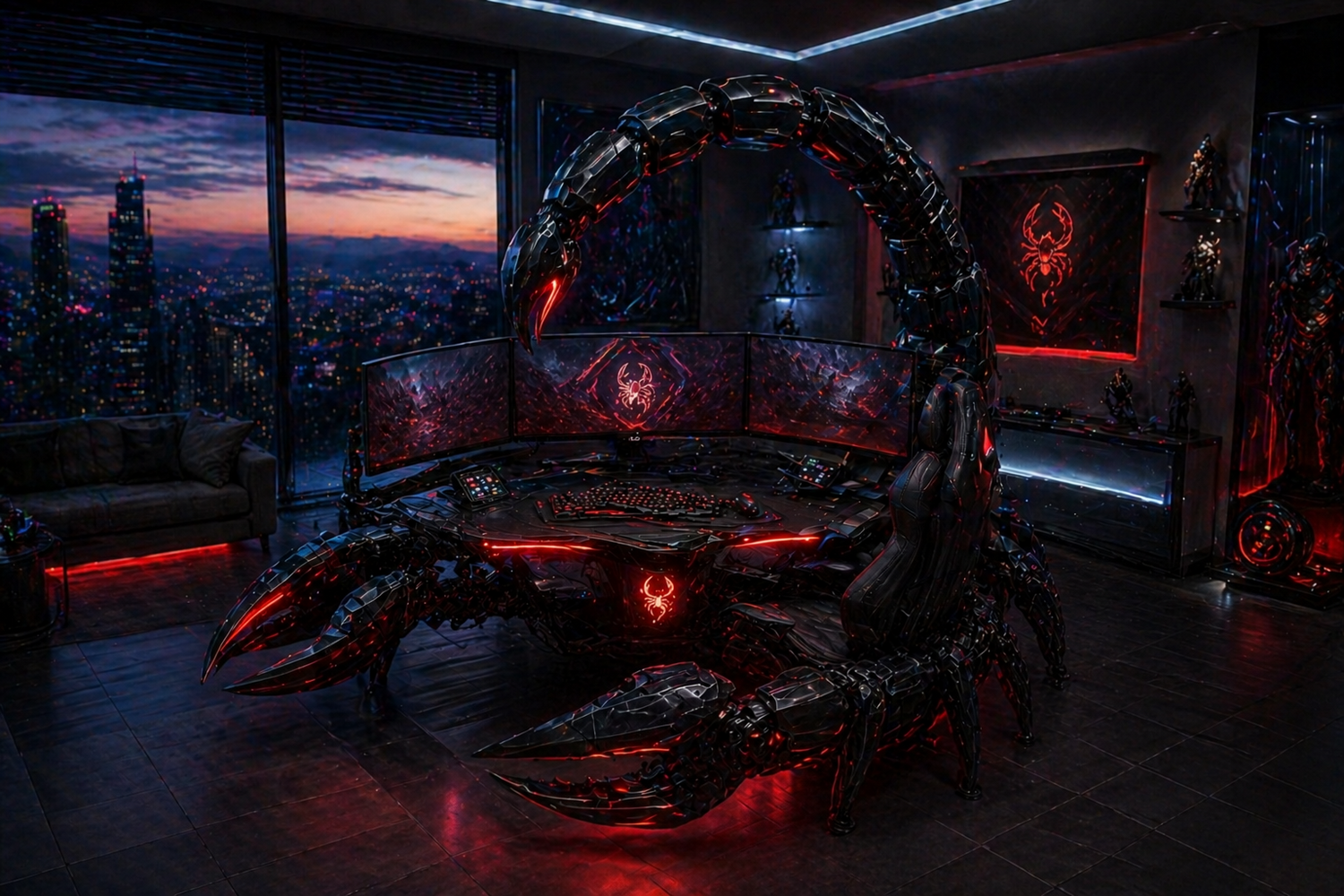
If you want to create an immersive, premium gaming environment, a scorpion gaming setup is one of the most futuristic and multi-functional ways to upgrade your battlestation. Unlike regular setups, these insect-inspired command stations blend striking design, advanced ergonomics, and pro-level customization—offering both a visual wow factor and practical everyday workflow improvements for gamers and creators.
Key Takeaways
- Scorpion gaming setups use arched, reclining structures, integrated mounts, and pre-installed RGB/cabling to optimize comfort and immersion—outclassing traditional desk + chair combos.
- These hybrid setups address posture and workflow with tilting, swiveling arms, and multi-monitor support, but often have quirks (awkward arm angles, limited seat adjustment) that require smart tweaks.
- Transparent total build costs, real-world health data, and market statistics remain underreported; buyers must balance high-end hardware, ergonomic upgrades, and honest limitations.
- What makes a “Scorpion” gaming setup different from a regular gaming room?
- Step-by-Step Guide: Building and Optimizing a Scorpion Gaming Setup
- Advanced Analysis & Common Pitfalls
- Conclusion & Next Steps
- Scorpion Gaming Setup FAQ
What makes a “Scorpion” gaming setup different from a regular gaming room?
A scorpion gaming setup is defined by its insect-inspired furniture—arched, curved frames that resemble a scorpion’s body, combining a reclining backrest, overhead monitor mount, integrated cabling, and immersive RGB lighting. Instead of a standard desk and chair, you get a “pilot’s pod” environment where screens move with you, cables vanish into the frame, and every control surface is within reach. The experience is remarkably different: the layout helps your screens stay the right distance at various recline angles (popular models can recline nearly flat), resulting in reduced eye and neck strain [TrendHunter].
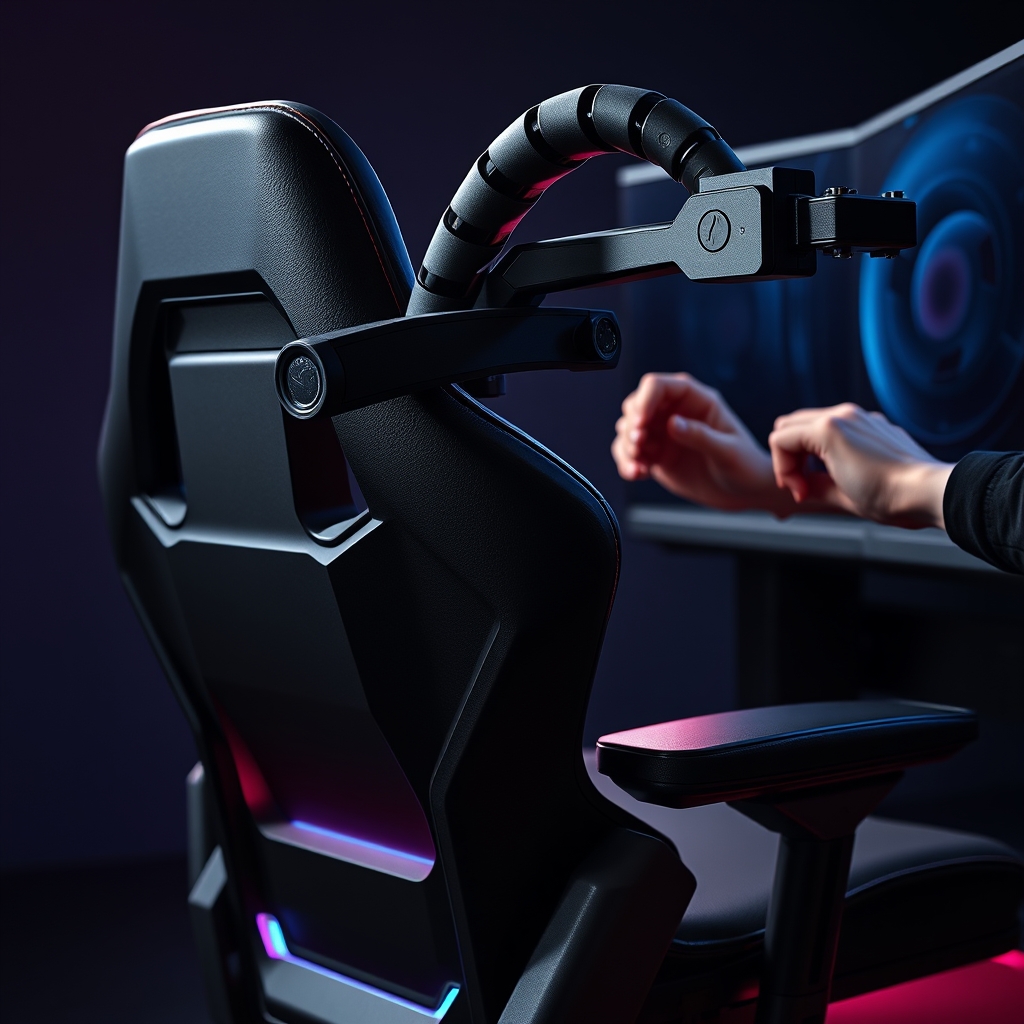
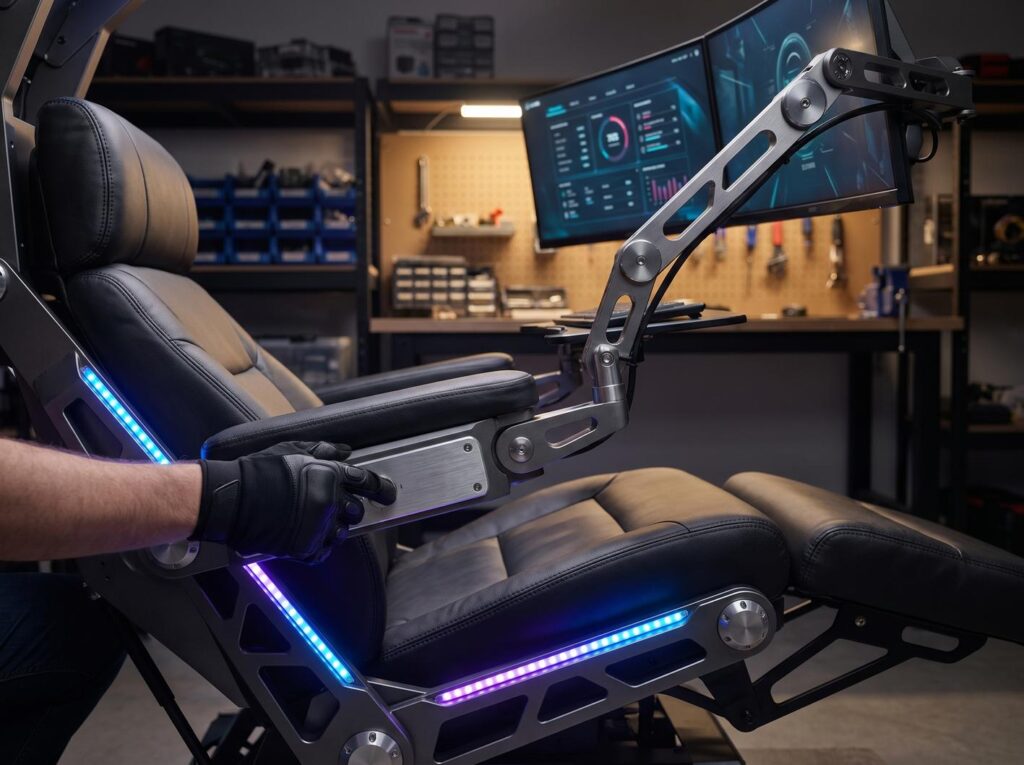
Dynamic features like tilting seats, swiveling armrests (which double as mini-desks), and integrated mounts support three or more high-end displays, creating a true cockpit workflow for gaming, streaming, and productivity. These setups are increasingly seen in hybrid home offices, blending gaming and creative workspaces with bold looks and seamless function.
Unlike static furniture, scorpion gaming setups put ergonomics and immersion front and center, built for users who care about both aesthetics and day-long comfort.
Step-by-Step Guide: Building and Optimizing a Scorpion Gaming Setup
Setting up a scorpion gaming station involves careful planning—hardware choice, ergonomics, accessories, and configuration are all critical to unlock real comfort and performance gains.
Step 1: Select the Right Scorpion Chair
- Choose a chair with an arched, dynamic frame (e.g., Cluvens SK Scorpion).
- Look for adjustable reclining (up to 160°, preferably with strong tilt locks).
- Ensure the chair has integrated multi-monitor mounting slots—minimum three VESA-compatible mounts is standard.
- Prioritize units with pre-installed 5m HDMI/DisplayPort cabling and programmable RGB lighting (ideally with touch or wheel controls).
- Premium: PU leather, high-density foam, and quiet tilting motors.
Step 2: Build Your Immersive Display Array
- Go for three identical monitors with strong VESA HDR support—e.g., Gigabyte M27U (4K, 160Hz, HDR600).
- Curved panels are best for wrap-around immersion, especially if gaming and editing.
- Confirm mount spacing to avoid bezels overlapping or excessive eye movement.
- Connect using the built-in cabling—route cables through the frame’s channels for a zero-mess look.
Step 3: Choose Your PC/Console and Core Gear
- High-end PC (i9-14900K, 64GB+ RAM, latest GPU) or PlayStation 5 Pro. Many setups feature all-white cases and components for a clean look.
- Pick peripherals with integrated RGB: keyboards with south-facing LEDs and programmable displays, gaming mice with high DPI, and responsive headsets (see our HyperX Cloud III review).
- Streaming? Add a capture card, webcam mount, and under-desk cable tray for extra connectivity.
Step 4: Accessories, Lighting, and Ergonomic Add-ons
- Customize chair armrests (if stock ones are rigid, replace with third-party adjustable arms).
- Install extra seat cushions or lumbar pads (see our ergonomic gaming chair tips).
- Add desk mat/extended mousepads, footrests, and noise dampening pads under the frame.
- Utilize programmable RGB modules for adaptive mood lighting (and reduce eye strain—see RGB accessory tips).
Step 5: Fine-Tune Layout and Cable Management
- Set monitors 60-80cm from your eyes when reclined—avoid “screen crowding.”
- Angle the chair so your knees are 90° and arms hover comfortably; use swiveling arms for keyboard, mouse, and writing.
- Bundle and label cabling, then feed into side channels or under-seat trays.
- Hybrid workflow? Convert an armrest into a notebook or tablet stand (see multi-angle stand ideas).
Advanced Analysis & Common Pitfalls
While scorpion gaming setups excel in immersion and futuristic design, they’re not without flaws. Real-world reviews and product demos highlight some recurring issues you should be ready to address before purchasing or building.
Common Pitfalls & Real-World Solutions
| Problem | Cause | Practical Fix |
|---|---|---|
| Limited recline/tilt range | Some chairs recline up to 160°, but only ~5° may feel practically usable for work and gaming, depending on body size. | Add a seat wedge or swap for a model with finer tilt increments. Supplement with external lumbar or wedge cushions for extra support. |
| Awkward arm position | Swiveling armrests sometimes “float” too high/low, causing wrist or shoulder discomfort in long sessions. | Install clamp-on adjustable armrests or experiment with height extenders and gel pads. Consider a split-keyboard (see our keyboard guide). |
| Monitor alignment issues | Inconsistent VESA mount tolerances or thick bezels can produce uneven triple-monitor layouts. | Shim mounts with washers or use precision monitor arms. Opt for ultra-thin bezel monitors, and measure carefully before install. |
| Poor long-term comfort data | Lack of clinical or user-submitted health data on these setups vs. traditional ergonomic setups. | Test personal comfort for two weeks—track back/neck strain and arm fatigue, then adjust padding, angle, or daily usage patterns as needed. |
| Price/project “blind spots” | Virtually no published end-to-end 2024 pricing; costs for full setups remain unclear or are spread across components. | Estimate based on similar high-end builds. Log every part; share real totals in forums and product groups (peer feedback is critical). |
Quick Fix: Awkward Arm Angle in 3 Moves
- Swap original armrests with modular, height-adjustable ones (look for padded variants).
- Add a wrist support gel pad under your keyboard/mouse.
- Loosen the arm sway lock—find your natural “rest” angle with no muscle tension. Fine-tune over a week of use.
Remember, “quick fixes” often involve small hardware tweaks plus consistent micro-adjustment based on your body and workflow—no one-size-fits-all with experimental furniture.
Real-World Example Build
One featured all-white scorpion gaming setup:
- Chair: Cluvens SK Scorpion (integrated RGB, triple VESA mount, PU leather)
- Monitors: 3x Gigabyte M27U (4K, 160Hz, HDR600, HDMI 2.1)
- PC: Intel i9-14900K, Z790 motherboard, RTX 4090, 7x Corsair iCUE RGB fans, LCD system sensor screen
- Peripherals: South-facing RGB mechanical keyboard, high-DPI mouse, HyperX Cloud III headset
- Extras: Stream deck, programmable RGB panels, white cable sleeves, anti-fatigue footrest, touch-based wheel RGB lighting controls
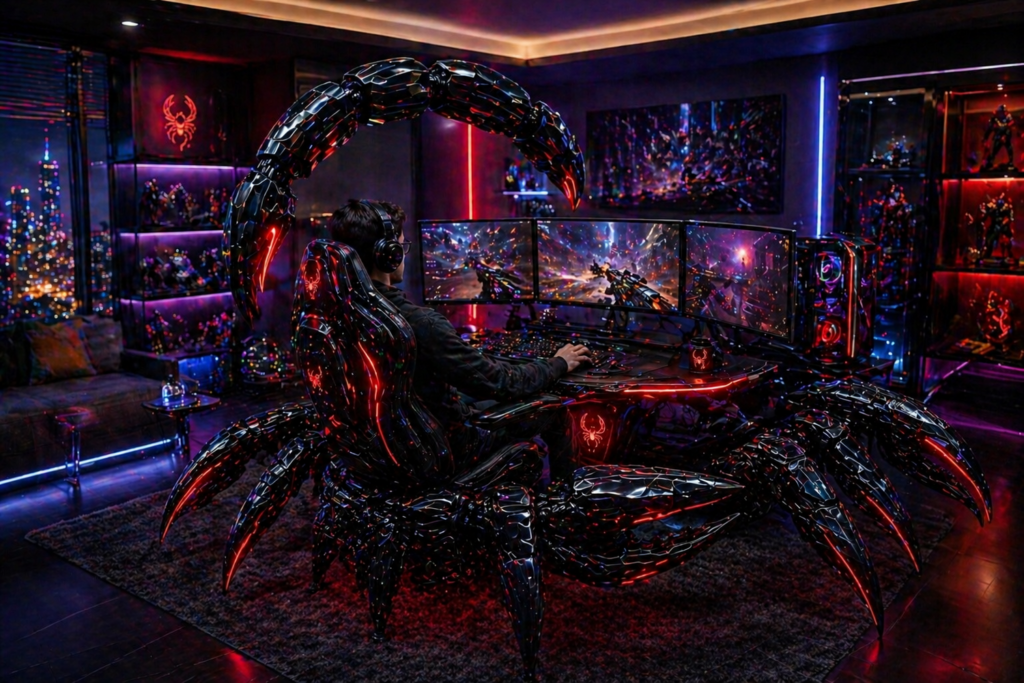
Photo tips: Photograph from a slight overhead angle and a side reclined view to show the arched frame and monitor wrap.
Costs and What to Watch Out For
Fact: There are no detailed 2024 pricing breakdowns for complete scorpion gaming setups, only component cost clues. Expect a rough minimum of $3,000–$4,500+ for a mid-to-high build (chair, three IPS monitors, mid/high-end tower, RGB, peripherals), but actual totals vary—especially if you opt for flagship CPUs or OLED displays. Always research each part and log your receipts for a real-world total. No blog, not even this one, has hard market pricing data as of June 2024 [Demo source].
For a primer on how to balance accessories, see our gaming setup accessories guide.
Major Advantage: Modularity—these setups let you swap monitors, switch between work and play, and tune lighting/cabling for a personal vibe. But expect a learning curve and some body tuning before you find lasting comfort.
Conclusion & Next Steps
A scorpion gaming setup offers unmatched immersion and functional style, transforming gaming and creative work into one seamless cockpit. Ergonomic wins like reclining backrests, track-mounted displays, and clutter-free wiring give you the edge—but only if you plan your hardware, arm positions, and workflow from day one. There are gaps: clinical health impact studies, end-to-end pricing, and adoption rates all lack data. The takeaway: test, adjust, and log your daily comfort; share your real experiences and full build costs with the wider gaming community (Reddit, user groups), so future buyers have the evidence you wish you had. Start your own scorpion gaming setup journey—prototype, refine, and help fill the knowledge gaps for everyone. If you’ve built or tuned a scorpion battlestation, contribute your real-world feedback and pricing to advance the field.
Scorpion Gaming Setup FAQ
Are scorpion gaming setups comfortable for long work sessions?
They can be—with proper armrest adjustment, lumbar support, and monitoring your posture. However, default ergonomic gaming chair features sometimes fall short for all-day use, so cushion and armrest upgrades are recommended. Test comfort over two weeks and adjust as needed.
Can you use a scorpion gaming setup in a small room?
Most scorpion chairs have a large footprint due to their reclining arc and monitor mounts—typically requiring at least 6×6 feet of dedicated space. Measure your room and map full recline angles before buying.
What monitors and PC are best for a high-end scorpion gaming setup?
For a premium build, use three matching Gigabyte M27U monitors (4K, 160Hz, HDR600, HDMI 2.1) and a top-tier tower (e.g., Intel i9-14900K, RTX 4090). For streaming, add a capture card, touch RGB controls, and programmable smart displays.
How much does a complete scorpion gaming setup cost?
No official or dealer-provided 2024 totals exist—current research suggests $3,000 to $7,000+ depending on component choices and RGB upgrades. Expect premium pricing due to custom furniture and triple-monitor arrays, plus pro-grade PCs.
What if I develop discomfort or pain?
Take breaks every hour, track where strain emerges, and adjust the tilt, armrest height, or add ergonomic pads. Consider consulting a physical therapist if pain persists, and keep experimenting with micro-adjustments for best comfort.
—
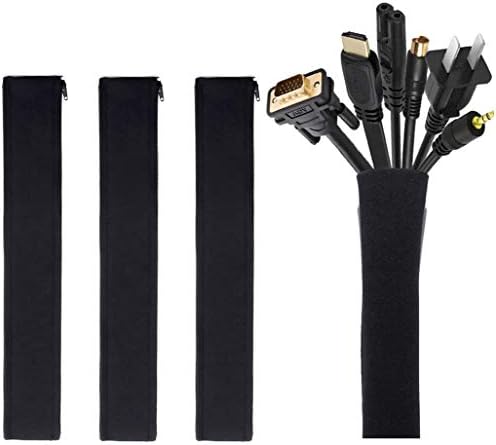
- Set of 4, each 19-20″ long, 1.2″ diameter when zipped up. Flexible neoprene cable sleeve with zip-up solution manages an…
- Form-fitting neoprene stretchy material allows for multiple cables and flexibility (each sleeve can hold up to 8-10 cabl…
- Easy to use, just gather cables together, wrap the sleeve around and zip-up, perfect for home and office use